Game Controls
Nothing is enforced. The table trusts you to play the game, and gives you fast ways to do it.
The sidebar#
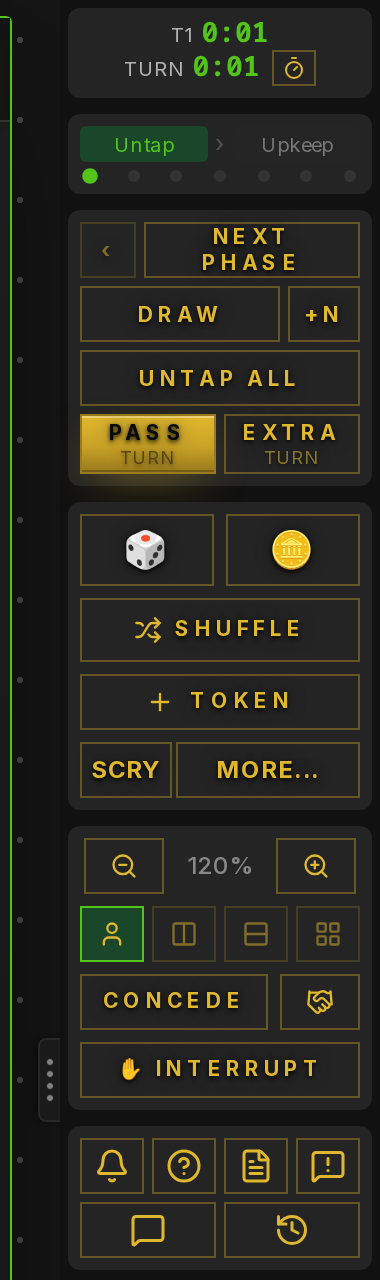
Top to bottom:
- Next Phase and the little back arrow step through the phase strip. Pass Turn asks you to confirm, then hands the turn on. Extra Turn gives you another one.
- Draw draws one. +N draws several.
Ddoes the same as Draw. - Untap All untaps everything you control. The arrow beside it untaps just the card types you pick, such as lands for Bear Umbra or nonland for Dramatic Reversal. Turn on Auto untap in settings and it happens at the start of your turn without asking.
- Click a die in the floating mana column to change it. Pick an amount with − and + or type it, then press Add or Remove (Enter adds). Each button shows what the total will be. Make infinite turns that colour to ∞, and Back to 0 undoes it.
- Dice rolls up to 20 of any die. Coin flips one, or up to 20 at once with a heads and tails tally.
- Shuffle shuffles your library. Token opens the token search, with a shortcut row for tokens your deck makes. Scry looks at the top cards.
- More… has the rest: Surveil, peek at or reveal the top card, draw from the bottom, search your library, show a card to one opponent, mill, exile from the top, manifest the top card (it lands face down and only you can see what it is until you turn it up), reveal your hand, discard, discard at random, and Deal damage… (see Damage outside combat). Mill and exile from the top can also run until a card type or mana value turns up, and Total ≥ keeps going until the mana values add up to your number (Tasha's Hideous Laughter). The Excluding tags skip card types even when they match, so a Codie trigger can look for MV = 0 without stopping on Lotus Petal. Reveal until… (Discover, Cascade and Hermit Druid live here) has the same tags, and Permanent, Nonpermanent and Basic Land work as stop conditions too. Reveal top X… shows the top cards of your library to the whole table, then you pick which go to your hand or the battlefield and where the rest go. It has presets for Goblin Ringleader, Mulch and Satyr Wayfinder.
- Three small buttons: the white flag is Concede (in a best of three it asks whether you mean the game or the match), the handshake is Propose a draw, and the gavel is Vote to kick, greyed out on tables that don't have it on.
- ✋ Interrupt raises your hand. Everyone gets a toast saying you have a response, and a hand icon sits on your seat until you lower it. Use it when someone's about to move on and you have something.
- 👍 tells the table to go ahead: you're letting it resolve or taking the damage. It shows on your seat for a few seconds.
- ⏳ asks for a moment to think. It stays on your seat until you tap it again or the turn passes, and the table hears a soft pop if they have alert sounds on.
- The three sit side by side as icons in the sidebar; hover one for what it does.
- Your seat shows one signal at a time, so raising your hand replaces a 👍 or ⏳, and either of those lowers your hand.
- The bottom row: keyboard shortcuts, the game log, feedback and player reporting, chat, and a break request.
Playing cards#
Drag a card from your hand onto the battlefield. That's it. Drops land where you let go unless Snap to Grid is on.
Right-click a card in hand for the other places it can go: graveyard, exile, top or bottom of library, a specific library position, or the command zone. Show to on that same menu reveals just that card to one opponent, or to everyone, without showing the rest of your hand. Select a few cards first and it shows all of them.
Tapping#
Double-click a card, or hover it and press T. With several cards selected, T taps or untaps them all in one go. Cards you've marked Doesn't Untap in their menu, and phased out cards, are skipped by Untap All and auto untap.
Combat#
Attacks are declared, not enforced. Nothing deals damage for you, but everyone can see who is swinging at whom.
Attacking. On your turn, open the menu on one of your creatures (right-click or the ⋯ button) and pick Attack, then the player, or one of their planeswalkers or battles. Select several creatures first to send them all at once, and split them across players by repeating it with a different selection. Attackers tap, get a red outline and a badge naming the player or permanent they're attacking. Declaring from Main 1 moves the phase strip to Combat. Remove from combat on the same menu takes one back out. A land or other noncreature you've animated counts once it has a P/T adjustment or +1/+1 counters, so give it one first.
Blocking a stack. A blocker stops one token, so blocking a stack splits one off to be the blocked token, and the rest stay unblocked and still deal damage. To double-block a token, pick the one that already split off. The Block menu shows each attacker's power and toughness.
Blocking. When someone attacks you, a banner just below the player tabs says who, with how many creatures and how much power, and names any of your planeswalkers or battles under attack. Open the menu on an untapped creature and pick Block, then the attacker. Blockers get a blue badge naming what they block, and the attacker's badge counts its blockers. Click either badge to flash the other side of the pairing. When you're finished, press Done blocking (or No blocks) in the banner so the attacker knows to carry on. Change blocks reopens it. Click the banner's title line to collapse it out of the way; it opens again by itself when there's something new to decide. In Two-Headed Giant and Archenemy either teammate can block for the other.
Damage. Once you've pressed Done blocking, the banner adds up what your unblocked attackers would deal: their current power (counters and P/T changes included), twice for double strike, poison instead of life for infect, and the commander damage share for any attacking commander. If a card in play could change the damage, like a doubler, the banner names it, because many only apply in certain cases and only you can tell. A creature that doubles its own damage is counted for you. Change the numbers if they're wrong, including the commander damage, then Take it, or Skip to do it by hand. Blocked creatures and anything attacking a planeswalker or battle aren't counted, so trample damage, loyalty, lifelink and anything that prevents damage are still yours to sort out.
The attacker's banner shows each defender as they decide, including who is still taking damage. Moving on from Combat, passing the turn or pressing End combat clears every attack and block. Once every defender is done, the banner tells everyone else it's waiting on the attacker. Wait for each defender to Take or Skip first: damage not yet taken is dropped. End combat asks before doing that, and if it happens anyway the log and a notice tell both of you what was missed, so the life total can be fixed by hand.
Damage outside combat
For Lightning Bolt, a pinger, or anything that deals damage to each opponent. Pick Deal damage… from the menu on the card doing it (on the battlefield, or in your graveyard, exile or command zone), or from More… in the sidebar when there's no card to point at. Set the amount, tick who gets it, or press Each opponent, and deal.
Nothing changes until each player answers. They get a popup with the card and the amount: Take loses that much life, Decline leaves it to be sorted out by hand (prevention, redirection, or a mistake). You see a line per player saying who has taken it so far, and Cancel the rest withdraws it from anyone who hasn't answered. Every deal, take and decline goes in the game log.
It's plain damage to life. Commander damage, infect and lifelink are still yours to apply. In Two-Headed Giant each player on the team takes it separately, so "each opponent" hits the shared total twice, the same as the rules.
Moving between zones#
Drag a card onto a zone in the right-hand column, or use the card's right-click menu. The keyboard is quicker once you're used to it: hover a card and press G for graveyard, E for exile, H for hand, L for the top of your library (Shift + L for the bottom), K to pick a position in the library, or S to shuffle it into your library. These work on cards in your hand as well as the battlefield, and B plays a hovered hand card to the battlefield. With a selection the same keys move everything selected. On a token stack they move one token.
The card menu#
Right-click any card you control. On the battlefield the everyday actions sit at the top and the rest are grouped into submenus, so the menu stays short. Cards in other zones get a plain list of the moves that apply there.
- Tap / untap (
T), then Attack on your turn or Block when you're being attacked, with Remove from combat / Stop blocking to undo them. See Combat. - Flip / Transform (
F) for double-faced cards, Turn Face Down, and Rotate 180° (R) for flip cards. Meld shows up when both halves of a meld pair are on your battlefield: right-click either and pick Meld with the other. The pair becomes the melded card, leaves the battlefield as both cards, andFor Un-meld splits it again. - Attach… picks a creature to put an Aura or Equipment on. Detach takes it off.
- Counters ▸: +1/+1, −1/−1, loyalty, stun, goaded and the rest, keyword ability counters, or Custom… for anything else. Below them, Proliferate (this card), Remove all counters & modifiers, and Keep Counters On Zone Change for Skullbriar and Vega.
- Level up on a Class steps it from level 1 to 3 (Level down steps back), shown as a Lv badge. A Room offers Unlock for each door, and the badge names the open door. Lock closes it again.
- Power / Toughness ▸ nudges the P/T badge independently of counters (
Popens an editor). - Copy ▸: Token Copy (
X) makes a token copy. Become a Copy of… turns the card into a copy of another face-up permanent, for Clone, Spark Double, Mirage Mirror and the like. It shows the copied card with its real name on a purple badge, stays a nontoken, and keeps its counters. It turns back into itself when it leaves the battlefield or is turned face down, or use Stop Copying. Copy Something Else… switches what it copies (Cryptoplasm, Lazav). - Status ▸ holds the on/off states, and shows a ✓ when any is on:
- Phase Out leaves the card where it is but shows it see-through and doubled, with a PHASED OUT badge. Untap skips it and board stats leave it out. Phasing back in is up to you: Phase In on the card, or Phase In All to bring back every phased card you control. Opponents' permanents have Phase Out too, for Oubliette and the like.
- Doesn't Untap for a permanent that stays tapped, Doesn't Sort for a card auto-arrange should leave alone.
- Arrange ▸: Bring to Front and Send to Back for overlaps (
PgUp/PgDn), and Pin Card, which keeps the card in a tray at the edge of the board. The tray docks like the chat and log windows: drag its header to either edge. - Give to hands control of the permanent to another player. They get a prompt to accept.
- Deal damage… deals damage from this card to other players, who each take or decline it. See Damage outside combat.
- Send to Graveyard and Exile, then Move to ▸ for hand, the top or bottom of your library, a position in it, or the command zone.
- Group lets you bundle cards so they tap and move together.
- On a token stack: Split in half (
U), Split off some…, Remove 1, Remove some…, Remove all.
Select several cards first and the menu applies to all of them, with the same groups: Counters ▸ (add, remove, proliferate, clear), Status ▸ (phase, doesn't sort), and Move to ▸. Group and stack a big phase-out to keep it tidy.
Tokens#
Click Token in the sidebar, search, pick, done. Tokens your commander or deck creates are offered first. Tokens of the same kind stack on the battlefield with a count badge. Click the badge to add or remove copies in one go: a positive number mints that many more, a negative number sends that many to the graveyard. The same popup has Half and Some… to split the stack into its own pile.
For token-heavy decks, turn on Token bar in the game settings under Cards. It adds a panel to the dock column with your deck's tokens, the ones you've starred in the token search, and the ones you've made recently. One click puts one on the battlefield, hovering one shows the card like it does on the board, and the zoom buttons in its header change the thumbnail size. It docks on the right to start with; drag its header to the other edge to move it, and use its ✕ to switch it off again. It's desktop only, since the dock columns are.
Conjuring
Cards that conjure (the Mystery Booster playtest cards and Alchemy's digital ones) make a card from outside the game. Open the menu on the conjuring card while it's on your battlefield or in your graveyard and pick Conjure…. The window offers exactly what the card names, as many as it says and where it says (for the library you pick the top, the bottom or a random spot), so it's one click. Oracle of the Alpha lists the Power Nine. A conjured card is a real card, not a token, so it can be cast, bounced, milled and returned like any other, and a small gold CONJURED badge marks it. It isn't part of your deck, though: when the next game of a match starts, conjured cards are gone. The rest of the table gets a toast and a log line naming the card, where it went and which card conjured it, even when it goes into your hand. Conjure… only appears on a paper card whose text names what it conjures.
Counters#
Right-click a card and use Counters, or hover it and press + or - for +1/+1 counters. Counters show as badges. Click a badge to adjust it directly. The card view (one click on a card) lists every counter on your own card with a step either way and an add row, next to the effective P/T. The hover preview shows the same list, read-only, beside the enlarged card, so a creature half-covered by another can be read without moving anything. Custom counter badges show the first six letters of the name, so you can tell "Bob" from "Doug" when naming tokens. The Saved counters section in settings remembers custom counter names you use often.
Notes#
Right-click an empty bit of your battlefield and pick Add Note for a sticky note, handy for triggers you keep forgetting or a reminder for the table. Type straight into it. Everyone at the table, spectators too, can read it, but only you can change it. Drag it by the coloured strip along the top, and hover it for the colour dots and the ✕ that removes it. You can have six, and they stay put between games of a match. They show on the 2D board, not in the 3D view.
Library#
Click your library to open the viewer. It shows every card in order, top first, with a search box. Hover a card for three quick actions: draw it to hand, put it onto the battlefield, or put it on the bottom. You can also drag cards out to any zone. The library is shuffled when you close the viewer, so you don't need to remember.
For the top card specifically, the ⋯ menu on the library zone has Show top to me and Reveal top to all, which stay on until you clear them.
Show to opponent (under More…) hands the top few cards, or your whole library, to one opponent to pick from. You choose how many they see, how many they can take, where the picks go (exile face-down or face-up, battlefield, hand, top or bottom of your library) and what happens to the rest: shuffled to the bottom, graveyard, exile, or left on top exactly as they were. There are presets for the usual suspects, including Gonti, Jester's Cap, Praetor's Grasp and Moonring Island.
Graveyard and exile#
Click either zone to browse it, sorted however you like. The card type filters show how many of each type are there. Drag cards back out for recursion. Right-click your graveyard, or use its ⋯ button, for a count of each card type plus the number of different types, handy for Tarmogoyf and delirium. To look at an opponent's graveyard or exile, click it and they'll get a request to approve.
For a running count, turn on Board stats in the game settings under Cards. It adds a dock panel for any seat you pick: devotion to each colour, permanents by type (for affinity and friends), the graveyard by type with the number of different types (delirium), the hand size, library size and exile size. At the bottom it counts card types and creature cards across every graveyard, for Tarmogoyf and the Lhurgoyfs. It only shows what a player is allowed to know, so the library is a number and never its contents, and an opponent's hand is just a size. Face-down permanents count as creatures. Like the token bar it's desktop only, docks on the right to start with, and its ✕ switches it off.
Game log#
The Game log button at the bottom of the sidebar opens it. It records draws, plays, zone changes, taps, life changes, tokens, counters and turn passes, with who did what. When it's closed, a badge counts the entries you haven't seen. If there's a dispute, the log settles it.
The log and the chat open as floating windows you can move and resize. Scroll up in chat to read back and it stays where you are; a New messages button takes you back down when more arrive. Drag one to the left or right edge of the screen and it docks there as a column beside the board; drag its header back out to float it again. Chat on one side and the log on the other works, and so do both on the same side, stacked. The column's width is shared and drags from its inner edge. Drag a docked panel's header up or down to reorder the column.
In the chat, click someone's name on a message and it goes into your message box spelt exactly right, which helps with names that look alike on screen.
Type @ and a player's name to get their attention. Typing @ lists the other players at the table; arrow keys move through the list and Tab or Enter picks one. The player you mention gets the same alert as the Poke button on a player who has sat on their turn for two minutes (click Poke once to arm it, then again within three seconds to send): a two tone beep, a toast with your message, and a browser notification if they've allowed them. A mention works on anyone seated, at any point in the turn. Their chat button and window glow for a few seconds, and the mention is picked out in the message. Mentioning the same player again within 30 seconds still shows in their chat but doesn't set off another alert.
Mana symbols typed in braces, like {T}, {2}{U} or {W/P}, show as the symbols in chat and in the game log. Anything else in braces stays as you typed it.
Sounds#
Off by default. Turn on Sound effects under the Sounds section of the in-game settings (cog icon) and the table makes a noise: a slide for draws, a tap on the felt for plays and tokens, a shuffle, a card turning for taps and untaps, chips for life changes and counters, dice for rolls and coin flips, a chime when the turn comes to you, and a ping when someone raises a hand. Your own actions and other players' are separate switches, with the rest of the table off unless you want it. Turns and alerts have their own, and chat pings are a fourth, off by default. The volume slider is yours alone. Nothing here is shared with the table. The speaker button beside the game log in the sidebar mutes and unmutes the lot without opening settings.
Keyboard shortcuts#
Everything above has a key. The full list is on the Keyboard Shortcuts page, and ? shows it in game. N untaps everything and draws a card on your turn, and / opens your library to search it. Space and End for phases and turns are off by default because a stray press can't be undone. Turn them on under Turn hotkeys in settings.