Importing Decks
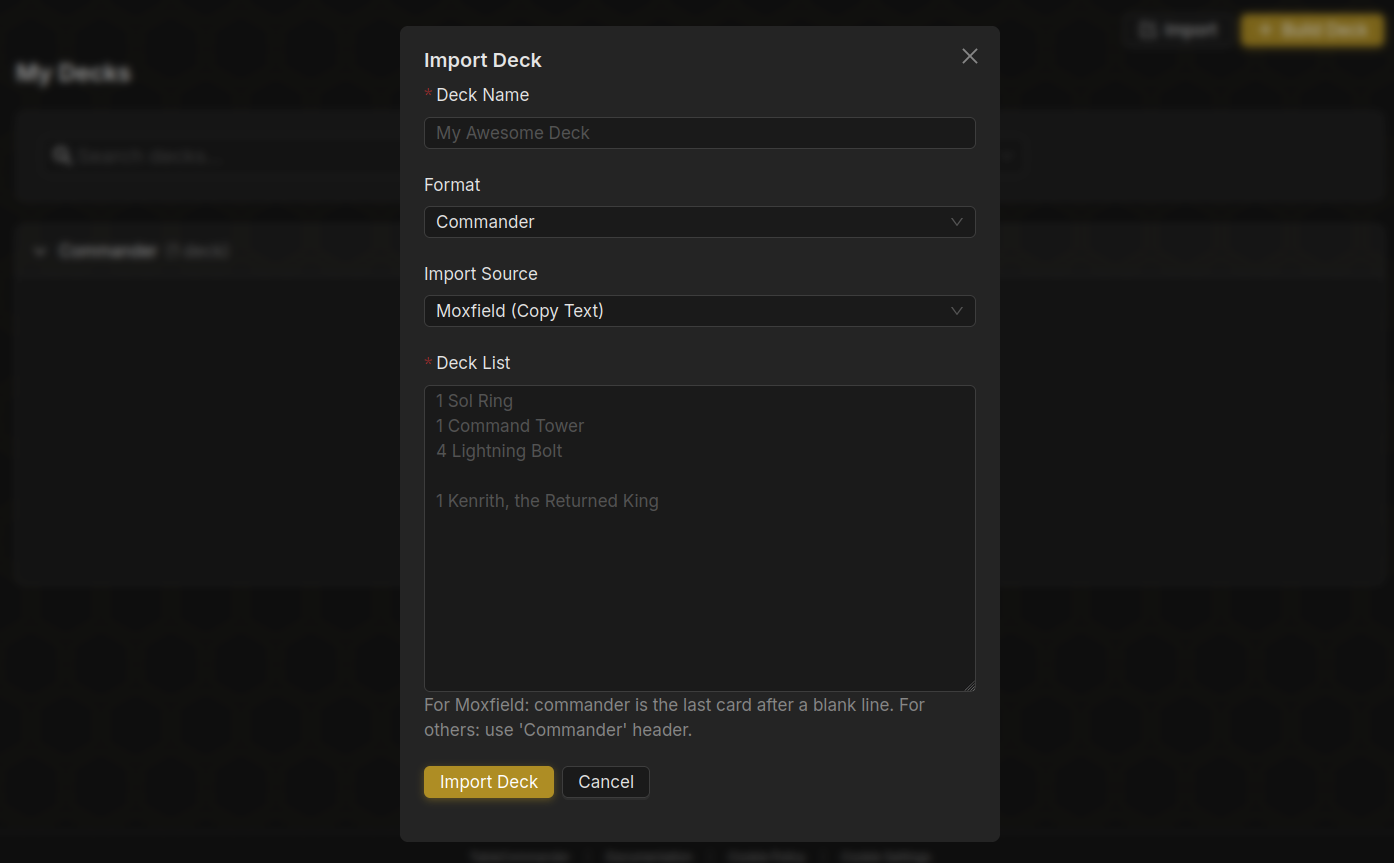
Open Decks and click Import. The modal has three tabs.
From URL#
Paste a Moxfield or Archidekt deck link. The name, format and commander are picked up from the page, and Archidekt categories come across as well. This is the quickest route if your decks already live on one of those sites.
Paste Text#
Copy a decklist from anywhere and paste it in. The Source dropdown defaults to auto-detect and recognises Moxfield, Archidekt, MTGO and TappedOut exports as well as plain text. These all work:
1 Sol Ring
1 Arcane Signet
4 Lightning Bolt (2XM) 123
4 Monastery Swiftspear (KTK)
Commander
1 Atraxa, Praetors' Voice

Deck
1 Sol Ring

Sideboard
1 Rest in Peace
Section headers like Commander, Sideboard, Companion, Attractions, Schemes and Planes are understood, so side piles land in the right place. Set codes and collector numbers are used when present and ignored when they don't match anything.
Upload JSON#
For a file made by Export as JSON on another TableCommander deck. It restores the deck exactly, including tags, notes and card art choices.
Preview#
Whichever tab you use, you get a preview before anything is saved: card counts by section, the commander it found, and a Parser notes list of anything it wasn't sure about. Fix the name or format there and click Import.
After import#
The deck opens in your library. From there you can edit it in the Deck Builder, change its privacy, playtest it, or move it into a folder.
When it goes wrong#
A card wasn't found. Usually a typo, a very new card, or a nickname rather than the printed name. The preview lists them. Fix the line and import again, or add the card by hand in the builder afterwards.
"Too many copies of a single card." The limit is 1,000 of any one card, and 2,000 cards in a deck. Those are engine limits rather than format rules. Anything over them can't be taken to a table.
The commander came in as a normal card. Put it under a Commander header, or open the deck and set it from the command zone in the builder.
Table-only formats. Two-Headed Giant, Archenemy, Planechase and Blind Commander aren't deck formats. Import the list as Commander and pick the format when you create the table.
Next steps#
- Edit the deck
- Site-specific import guides for Moxfield, Archidekt and TappedOut